This article was published in April 2023. Some details may have changed since, so check with us before relying on it.
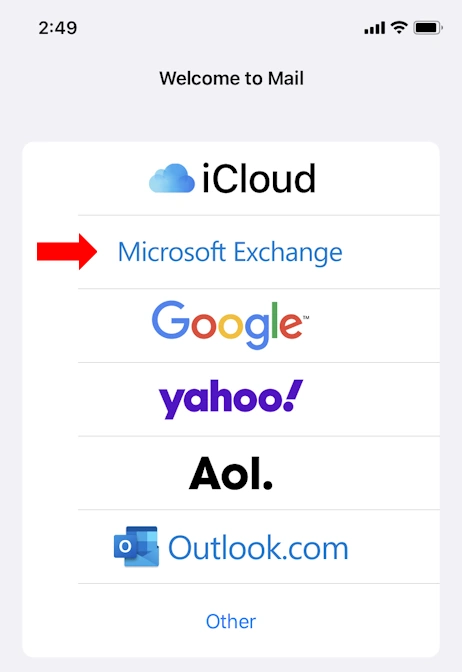
You can add a Microsoft 365 account to the native Apple Mail app (including using Modern Authentication). If you haven’t added an account to Mail before, tap on it and you’ll get asked to setup your first account. Choose Microsoft Exchange.
If you’ve already added an account and need to add another one, use this post.
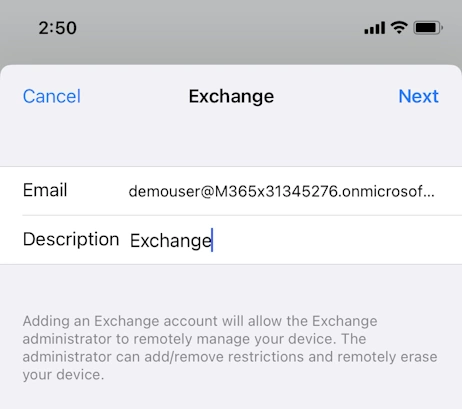
Enter your email address, the description will default to Exchange, but you can change this to anything you like. Then tap Next.
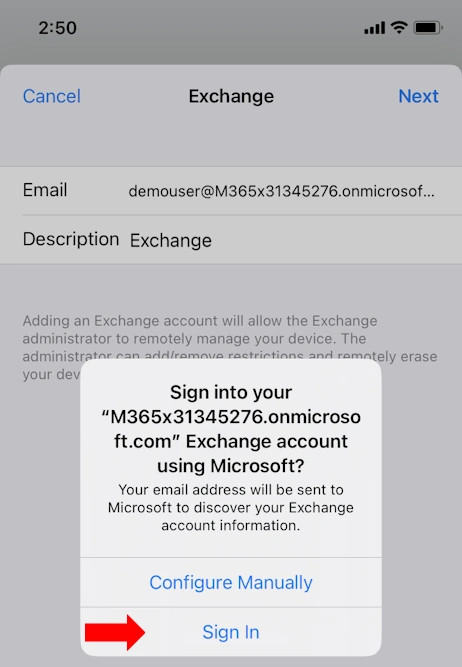
You’ll be asked if you want Configure Manually or Sign in. You’ll almost always choose Sign in.
Your device will re-direct to a web page to complete sign in, using the account you already entered. Now enter your password.
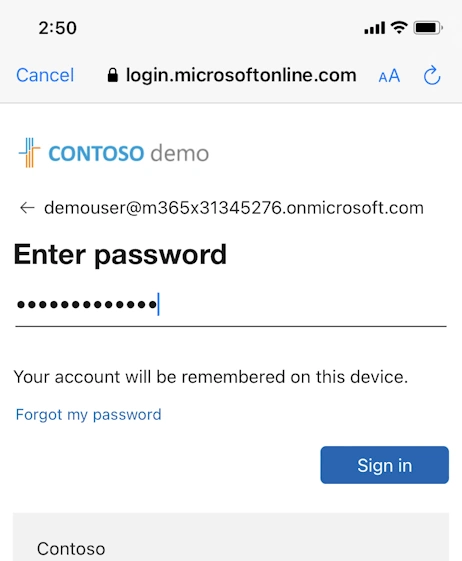
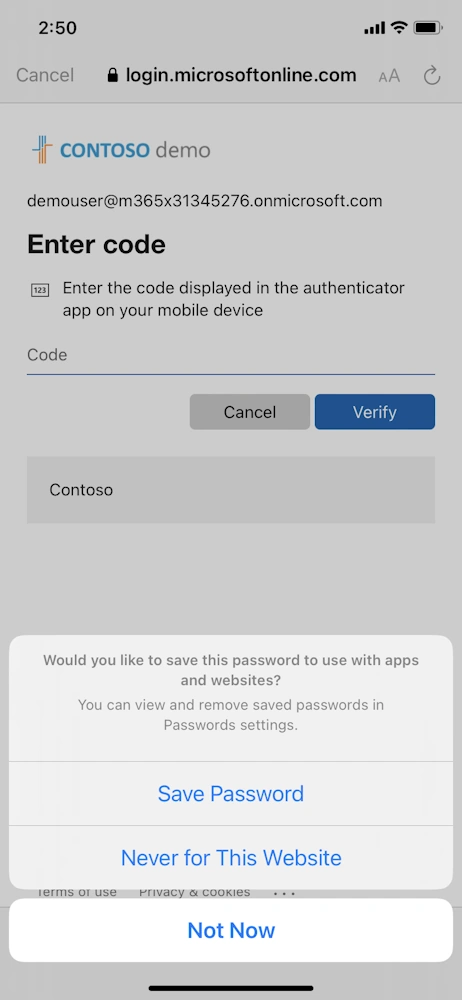
You’ll be asked if you want to remember the password (this is for web page login, and isn’t necessary for this setup) and you’ll complete any additional protection such as MFA (multi-factor authentication).
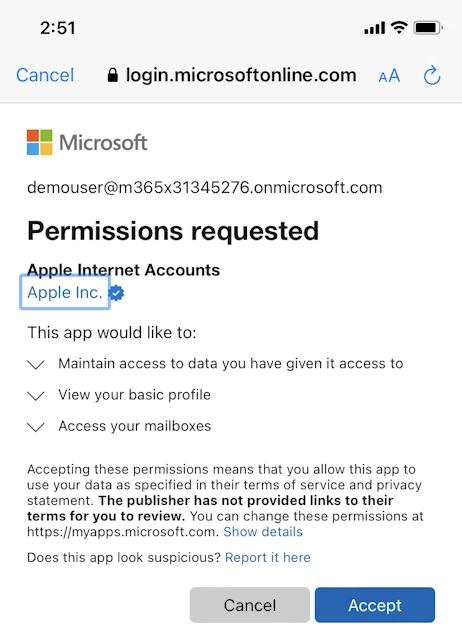
If that’s successful, and the Apple Mail app hasn’t been seen by your company’s Microsoft account before, you may need to allow Apple permission to access. You might be able to accept, but in most cases, you’ll subject a request to have it approved. We’ll then need to approve the app having access to your information, so contact us once you’ve submitted the request.
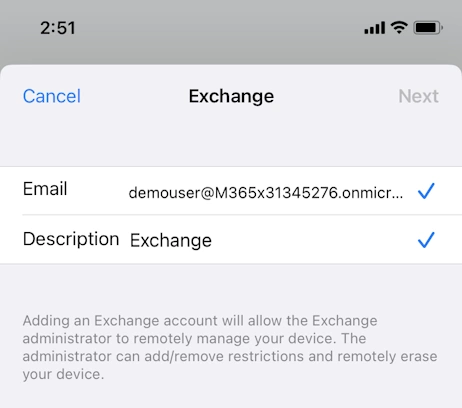
Once any security permissions and app approval is given, you’ll briefly see the setup return to the screen where you entered the details, but now with check marks against the details.
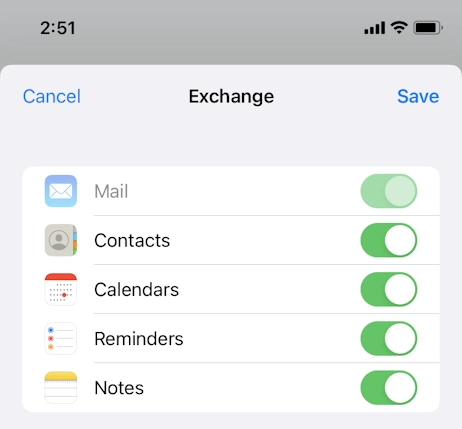
It will automatically move onto the next screen, where it will ask you to choose what you want to sync. In most cases you’ll want to sync everything, so leave everything turned on and tap Save.
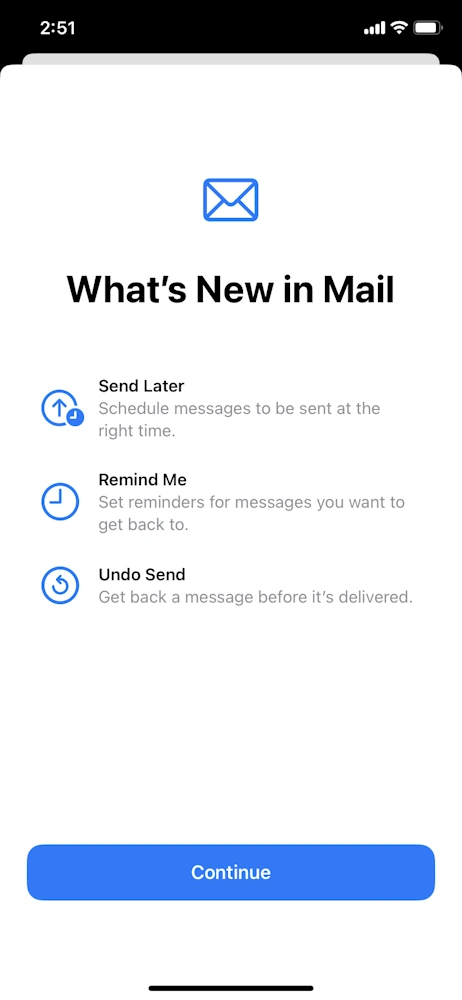
You might get some pop up information, just tap Continue.
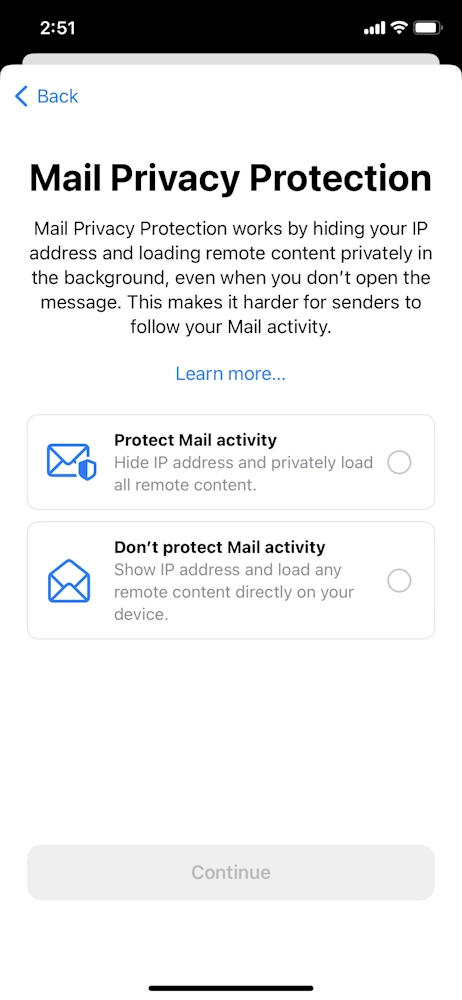
If you get questions around Mail Privacy Protection, enabling it can cause issues with other systems, so the default recommendation is to select the second option then tap Continue.
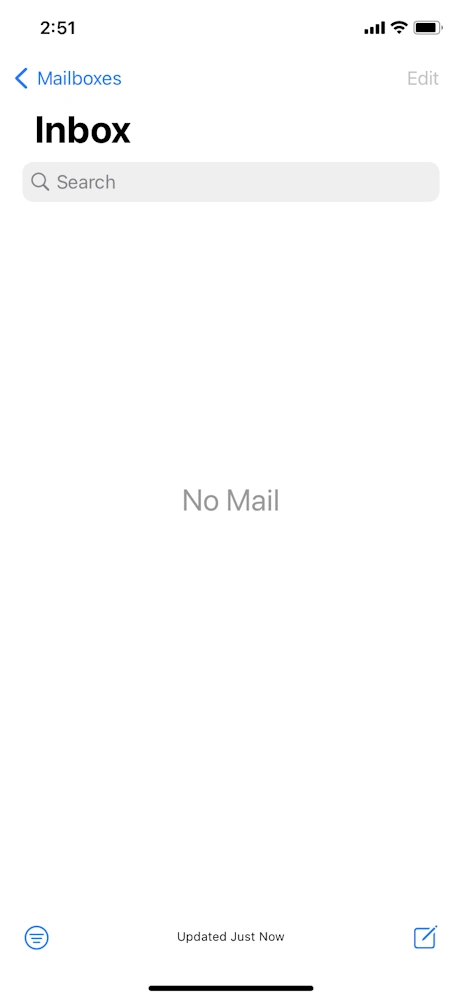
Once you get to the Mail screen, it will probably be blank. This is OK and is normal. Give it a minute or two to fetch your emails, and you’ll see it populate your emails reasonably quickly. Keep an eye on the bottom, as this is where any error will occur, if there is an error.