
This article was published in January 2024. Some details may have changed since, so check with us before relying on it.
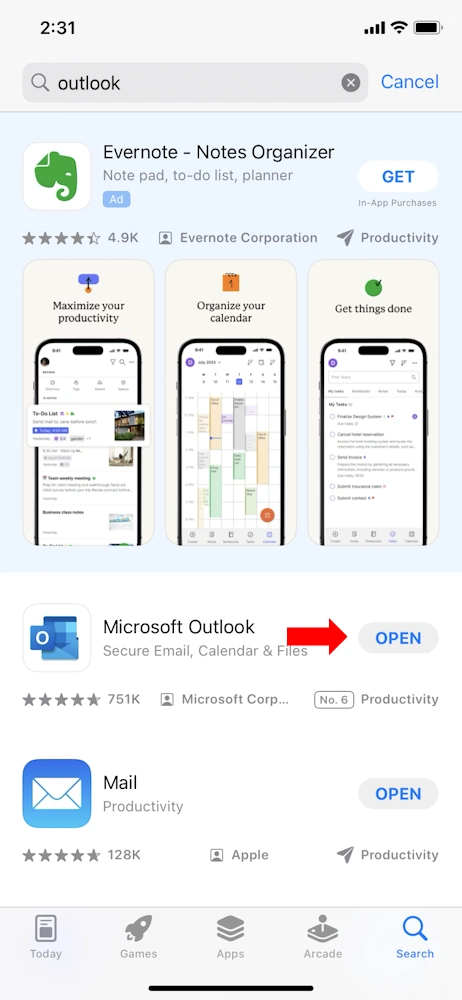
If you don’t already have the Outlook app installed on your iPhone open the App Store and search for “outlook”. If it’s already installed, it will say OPEN, otherwise, it will say GET. Make sure to select the one by Microsoft Corporation.
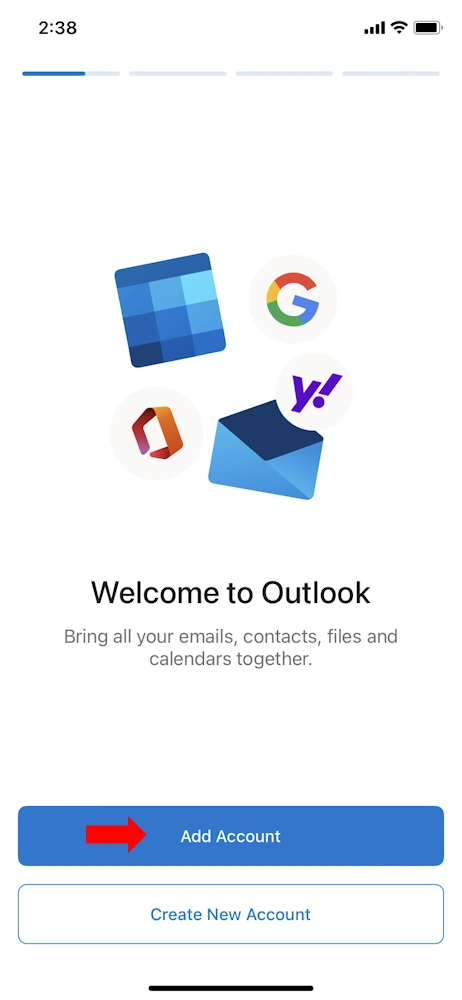
Open the app and assuming you’ve never added an account to the app before, you’ll see a welcome screen. Unless you’re setting up a free account, your account already exists, so tap Add Account.
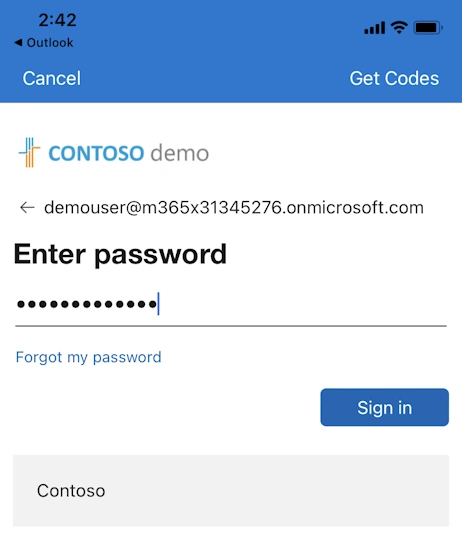
Enter your email address then on the next screen, your password. Then tap sign in.
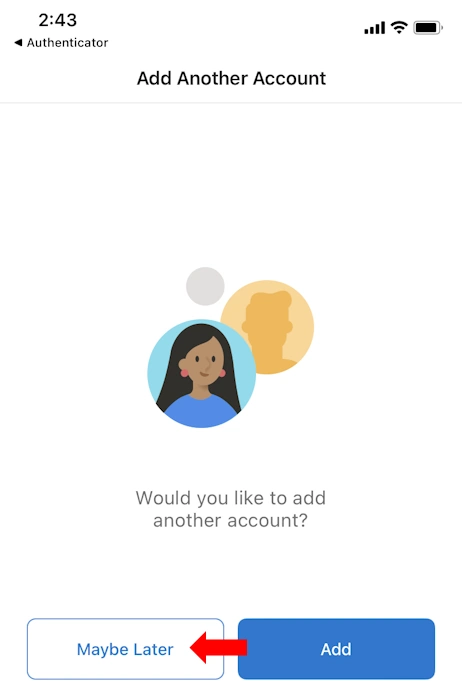
If you have additional security or your device isn’t registered on your account already, you may receive some additional prompts, otherwise, once it’s successfully added your account, the app will ask if you want to add another account. Tap Maybe Later.
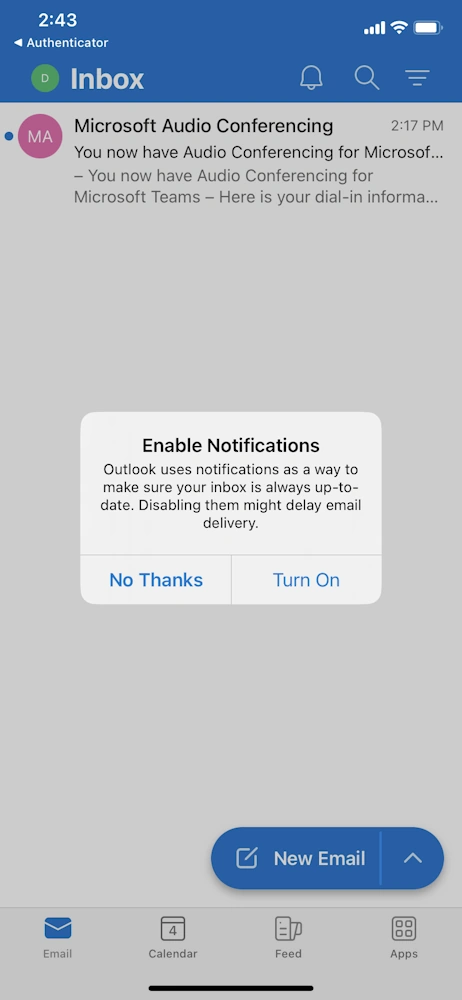
You should immediately start seeing your emails, and if you want to be alerted to new emails, enable notifications by tapping Turn On. Otherwise, you can prevent notifications by tapping No Thanks.
You can now send and receive emails via your account.